How to set up TillSync
There is no integration and no extra hardware. TillSync works from the confirmation SMS your Till phone already receives.
Before you start
- An Android phone (Android 7.0 or newer) that holds your Till SIM
- Mobile data or Wi-Fi on that phone
- A TillSync account for you, the owner
The steps
Create your account and business
Sign in with Google or email, then name your business and choose its type. You become the owner.
Set up the Till phone
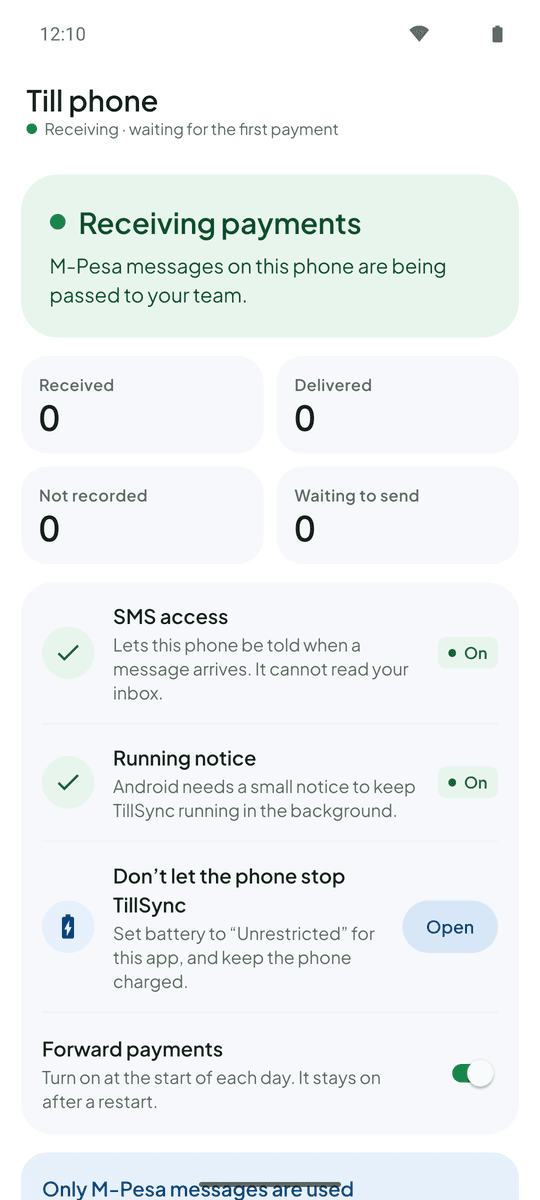
Install TillSync on the Android phone that holds your Till SIM and sign in. The Till phone asks for three things so it can keep running at the counter:
- SMS access, so the phone is told when an M-Pesa message arrives (it cannot read your inbox)
- The running notice, which Android needs in order to keep TillSync running in the background
- Battery set to “Unrestricted”, so Android doesn’t stop TillSync. Keep the phone charged.
Turn on Forward payments
Switch on Forward payments at the start of each day. It stays on after the phone restarts. The Till screen shows how many messages were received, delivered and are waiting to send.
Add your team
Each attendant creates a TillSync account and sends you their account ID. Add them under Team, choose what they can see, and they are in. Remove access at any time.
Watch payments land and claim sales
Payments appear live on every team phone and on the web dashboard. Attendants tap Claim on the customers they served, and you see sales by person.
If something looks off
It says “Till not reporting”
The Till phone has not reported for a few minutes. Check that it is switched on and online, that SMS access is allowed, and that battery is set to Unrestricted. Opening the app on the Till phone once brings it back.
It says “Till needs SMS access”
Open TillSync on the Till phone and tap Allow next to SMS access.
A payment did not appear
TillSync records standard M-Pesa “money received” messages. If a message does not clearly show an amount it is not recorded. Check the Till phone’s Waiting to send count, and confirm large payments on your M-Pesa statement.
Ready for a more connected counter?
Create your business, connect the Android phone that holds your Till SIM, and bring your team in.